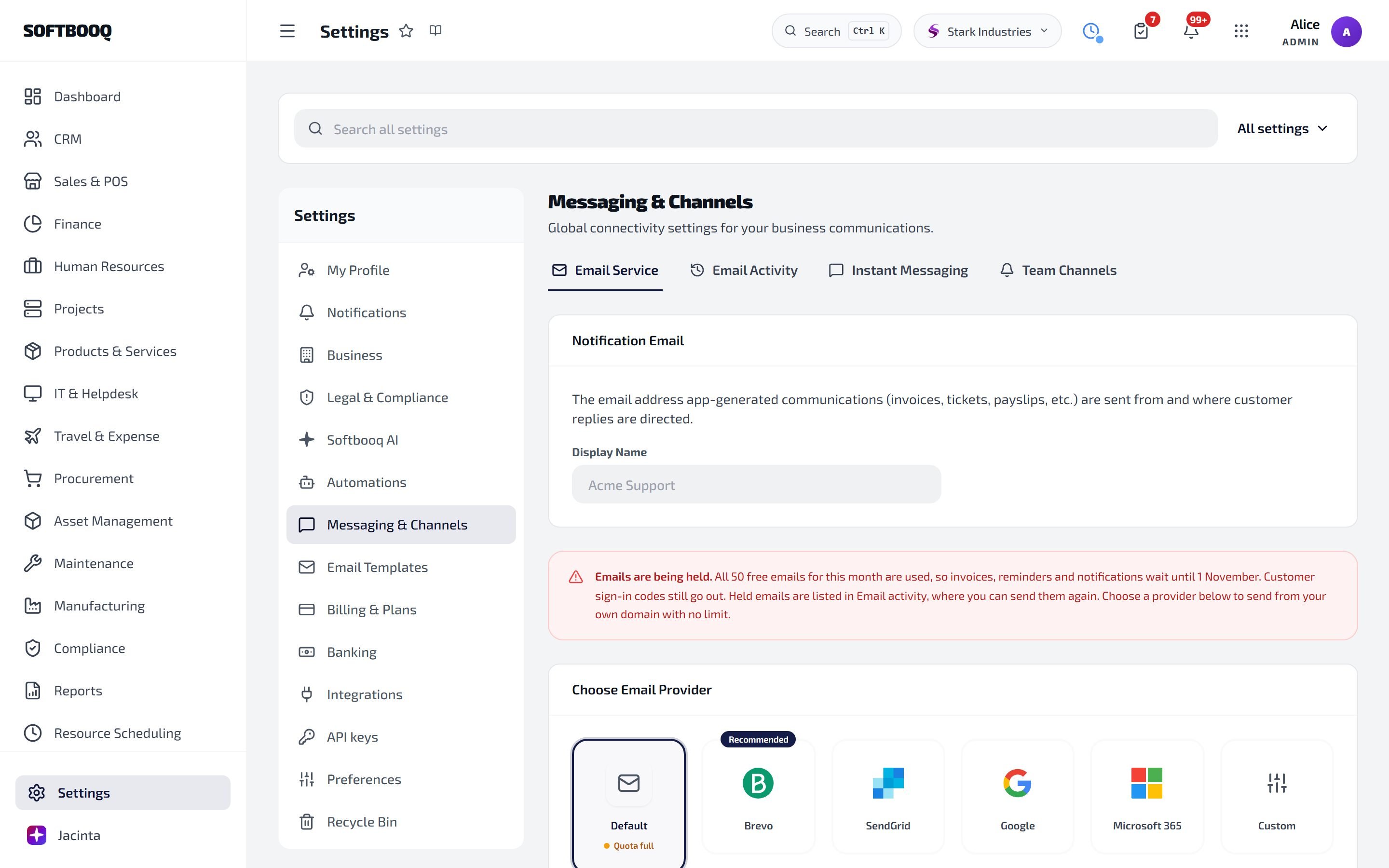
Softbooq sends invoices, purchase orders, payslips, password reset emails, customer portal invitations and other transactional messages on your behalf. To do this it needs to connect to a sending email provider. Six providers are supported, each with different setup paths.

Supported providers

ProviderAuthUse cases
Microsoft 365OAuth (admin consent)Most teams already on M365
Google WorkspaceOAuthMost teams already on Google
SendGridAPI keyHigher-volume transactional sending
MailgunAPI keyHigher-volume transactional sending
PostmarkAPI keyStrong deliverability for transactional
Generic SMTPhostname + port + username + passwordFallback for any provider
Only one email provider is active at a time per tenant. Switching providers takes effect immediately for new emails; queued emails complete via the previous provider before the switch finishes.

Connect Microsoft 365

Microsoft 365 uses an OAuth flow where a tenant administrator approves Softbooq once for the whole organisation, after which any user in the org can send via Softbooq without further consent.
1

Open Settings → Integrations → Email → Microsoft 365 → Connect

2

Sign in as a Microsoft 365 admin

The flow uses Microsoft’s adminconsent endpoint. You must be a Global Administrator or an Application Administrator to approve it for the tenant.
3

Approve the requested scopes

Softbooq requests Mail.Send and User.Read. Approve the consent. You are returned to Softbooq.
4

Set the sender

Pick the mailbox to send from (must be a licensed M365 mailbox). Set the From name shown to recipients (e.g. “Acme Invoices”).
5

Send a test email

Send to your own address to confirm. Check spam if it does not arrive immediately.
The admin consent flow grants application permissions, not delegated permissions, which means Softbooq can send as configured mailboxes without each user having to grant consent individually. This is the supported configuration.

Connect Google Workspace

1

Open Settings → Integrations → Email → Google Workspace → Connect

2

Sign in with the sending Google account

Use the actual mailbox you want to send from. Softbooq requests the gmail.send scope only; it does not request read access to your inbox.
3

Approve the consent

4

Send a test email

If your Google Workspace organisation requires admin pre-approval of third-party apps, your admin must approve Softbooq in the Google Admin console under Security → API Controls before users can complete the OAuth flow.

Connect a key-based provider (SendGrid, Mailgun, Postmark)

1

Generate an API key in your provider account

SendGrid: Settings → API Keys → Create API Key with Mail Send permission only. Mailgun: Sending → Domains → API Keys. Postmark: Servers → API Tokens.
2

Open Settings → Integrations → Email → SendGrid/Mailgun/Postmark → Connect

3

Paste the key and your sending domain

The sending domain must already be verified at the provider with proper SPF and DKIM records. Softbooq does not handle DNS configuration.
4

Send a test email

For best deliverability, configure SPF, DKIM, and DMARC records for your sending domain at your DNS provider. Softbooq cannot fix deliverability problems caused by missing or misconfigured records.

Connect generic SMTP

1

Open Settings → Integrations → Email → SMTP → Connect

2

Fill in the connection fields

Hostname, port (587 for STARTTLS, 465 for SSL/TLS, 25 if your server allows unauthenticated relay on the local network only), username, and password.
3

Test the connection

Softbooq attempts a TLS handshake and a single test send. If TLS fails, double-check the port. If auth fails, verify the password (some providers use an app password rather than the account password).

Switch providers

1

Open Settings → Integrations → Email

2

Disconnect the active provider

Existing queued emails finish sending via the disconnected provider before the disconnect completes.
3

Connect the new provider

Follow the relevant setup flow above. The new provider becomes active immediately.
Avoid switching providers during a high-volume sending period (e.g. end-of-month invoicing) to prevent partial-send confusion.

Troubleshooting

Check spam. Verify SPF/DKIM are configured at your DNS provider for your sending domain. For SMTP, double-check the port (587 for STARTTLS, not 25). For Microsoft 365, confirm the chosen mailbox has a sending licence.
Deliverability depends on your sending domain’s reputation, SPF, DKIM, and DMARC. Softbooq cannot influence this. The most common cause is sending from a domain without DKIM signed by the provider you are using; configure DKIM at your DNS provider per the instructions on your provider’s domain verification page.
Softbooq’s Google Workspace integration is verified by Google for production use. If you see an unverified warning, the consent flow was opened against a non-production OAuth client (e.g. a self-hosted dev build). Open the consent flow from app.softbooq.com only.

See also

Settings

The full Settings menu where Email lives.

Finance

Invoices and credit notes are sent via the connected email provider.

Procurement

Purchase orders and supplier RFQs are sent via the connected email provider.