

Install it
Open Softbooq on your phone, then Settings → My Profile → Install the app → Install Softbooq. It then opens from your home screen like any app.Finding your way around
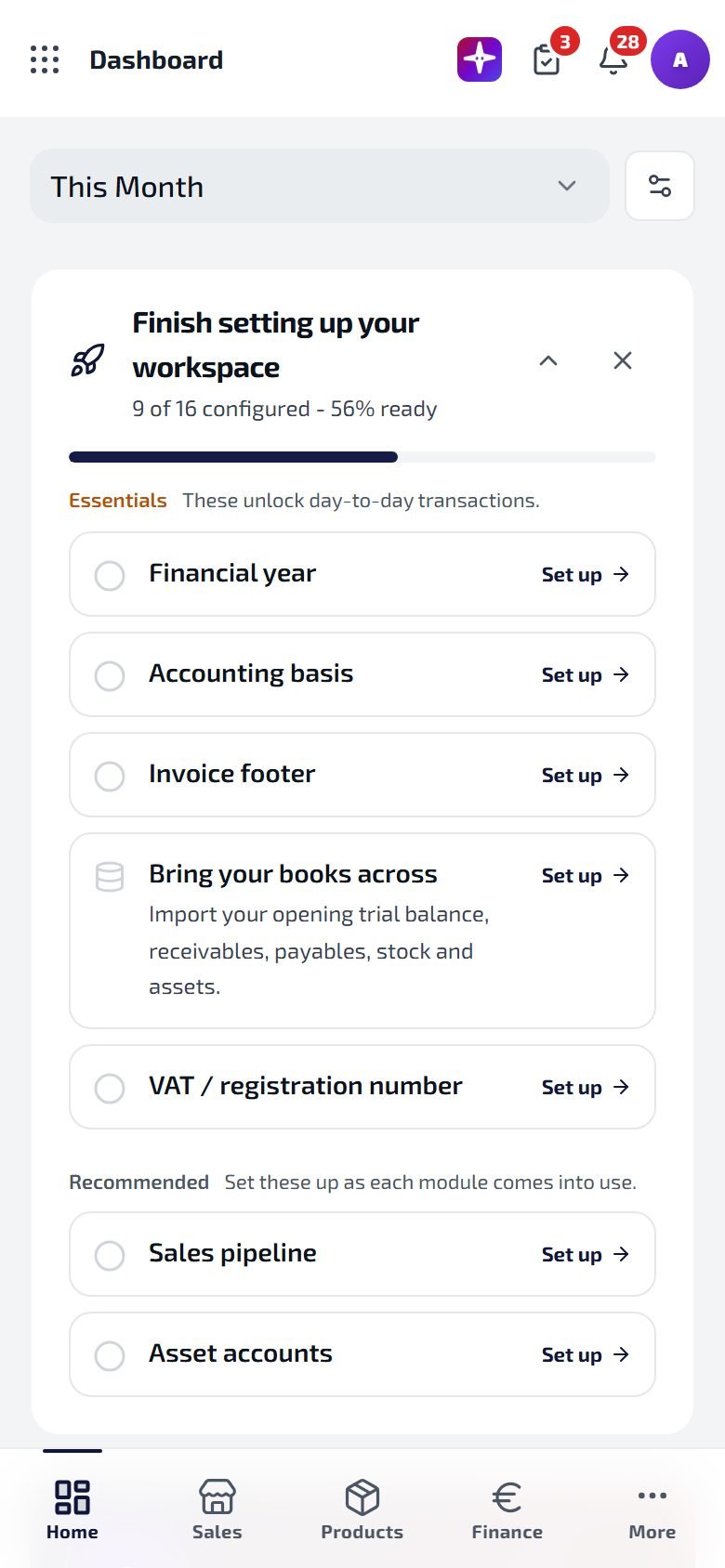
Home, three of your modules, and More along the bottom.
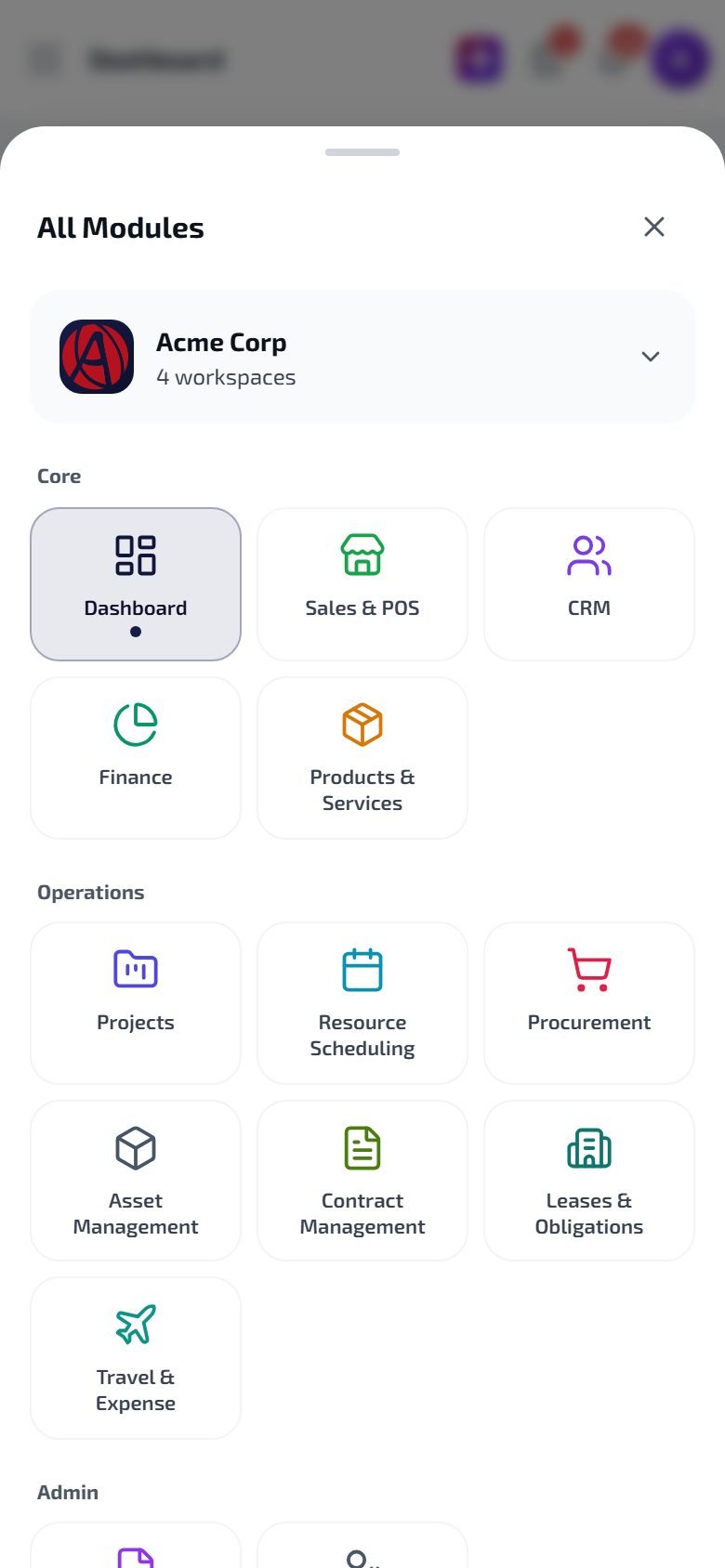
More opens every module, grouped into Core, Operations and Admin.
Made for the phone
- Count stock in Products & Services: scan a barcode and enter what is on the shelf.
- Receive goods from a purchase order.
- Bank matches: the payments the bank sent that Softbooq has paired with an invoice or expense, one card each, to confirm or reject. Below them, lines not matched yet, each with Ask Jacinta: she explains what the line probably is and offers the match.
- Expense reports and travel requests as cards you can decide on.
Signing in
Phones stay signed in until you sign out or your session is ended; a short network problem does not sign you out. The Desktop inactivity lock in the security policy does not apply to phones: the phone’s own PIN or Face ID protects them. When your account signs in on a device it has not seen before, you get an email naming the device.At the counter
For selling at the counter there is a separate app, Softbooq POS, which keeps working when the internet drops and catches up afterwards. See Sales & POS.See also
Quickstart
Setting up your workspace.
Jacinta on problem screens
Help on bank matches and other problems.