

How Finance is organised
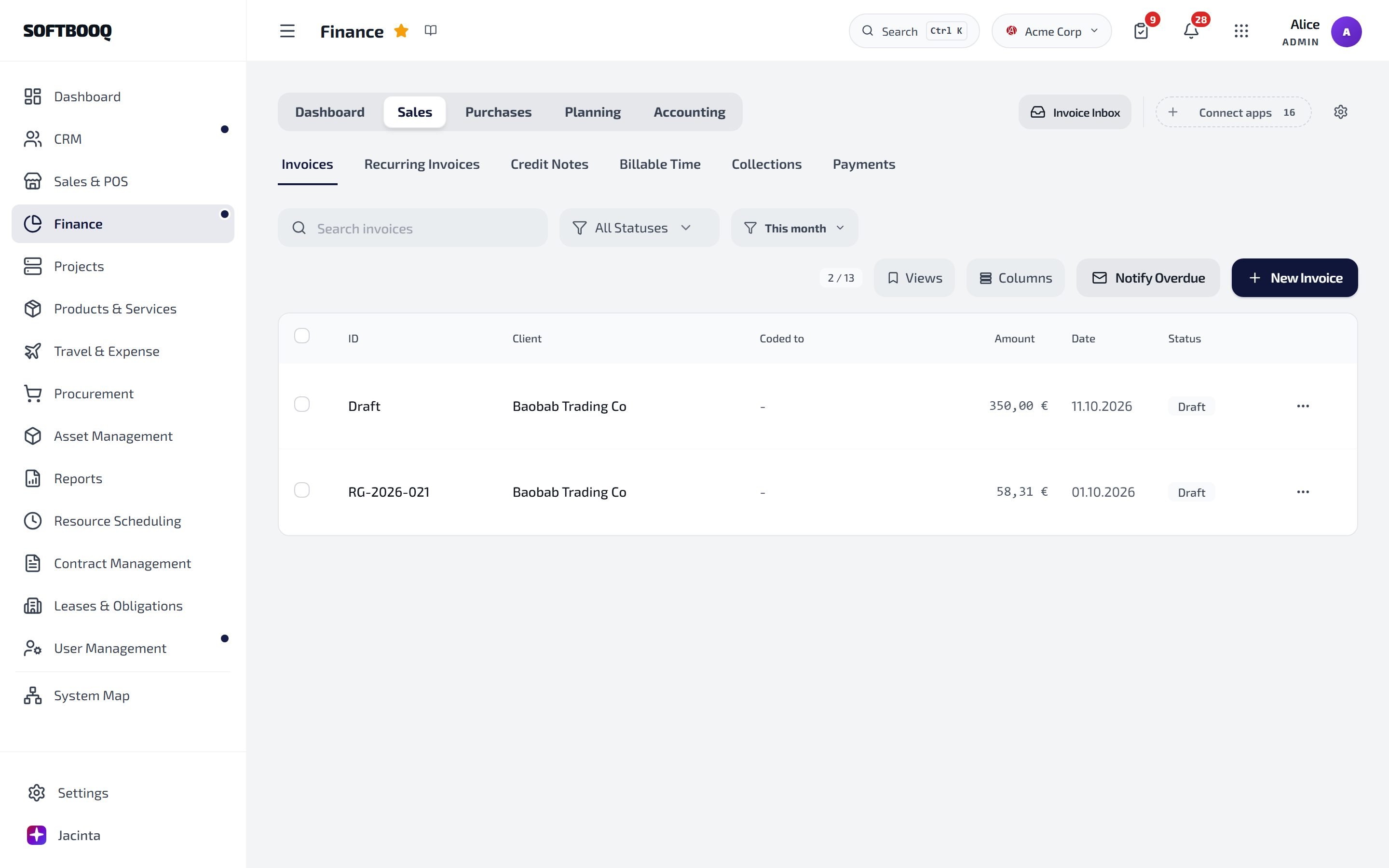
The five sections along the top, the tabs of the open section underneath, and New Invoice on the right.
Revenue Recognition, Provisions and Development Costs also appear under Accounting unless advanced accounting is switched off in the Finance settings (the gear).
Books Health checks whether your books can be trusted and offers repairs for what it finds. It sits next to your figures under Dashboard, and under Accounting.
Finance needs the Finance permissions. Admins and Managers have them; Employees and Viewers do not see Finance.
Common tasks
Create and send an invoice
1
Sales → Invoices → New Invoice
2
Fill in the invoice
Choose the customer, add the lines, and check the currency, payment terms and status. A new invoice starts as Draft.
3
Save Invoice
4
Send it
In the invoice list, choose Send Email on the invoice. Emailing a draft marks it Sent.
Record a payment
Open the invoice and choose Record Payment. Enter the amount, the method and the account it was paid into. If the customer has credit with you, the dialog offers Apply … of credit, and you can tick Email the customer a receipt. A part payment leaves the invoice Partially Paid; full payment makes it Paid. A payment larger than the invoice becomes credit for that customer.Bills from suppliers
Supplier bills reach Purchases → Bills from the Invoice Inbox (forwarded or uploaded) and from purchase orders (Create Bill in Procurement). Bills move through the stages Inbox, To approve, To pay, Paid (or Rejected). Pay takes you to Payment Runs, where you pay several suppliers at once or export a bank file.Log an expense
Purchases → Expenses → Record Expense. Pick a category and enter the total on the receipt: the net amount and the VAT are worked out at the right rate, and stay editable. Add a cost center or project if you like, and attach the receipt. Expenses that staff paid themselves and want back are under Reimbursements.Correct an invoice with a credit note
Open the invoice and choose Correct with a credit note, or go to Sales → Credit Notes → New credit note and pick the invoice. Write the reason in your own words. You can save it as a draft first, and record whether goods came back.Make a journal entry
Accounting → Journal Entries → New Journal Entry. Add the lines, and post when debit and credit balance. To undo a posted entry, use Reverse entry: it posts the mirror entry, so the history stays complete.Bring in your bank and reconcile
Connect your bank in Settings → Banking → Bank Feeds, or upload a statement file (OFX, QIF, CAMT.053 or MT940). Transactions appear under Accounting → Bank Feeds. To match them to invoices, bills and payments, open Reports → Recon Workbench and use Run Auto-Match, then confirm or reject each suggested match.Troubleshooting
I cannot see New Invoice
I cannot see New Invoice
Creating invoices needs the Finance management permission. Ask an Admin to check your role in User Management → Roles & Permissions.
A report looks wrong
A report looks wrong
Open Books Health. It shows what is off in the books and, where it can, offers the repair.
The financial year starts in the wrong month
The financial year starts in the wrong month
It is set in Settings → Business → Accounting and cannot be changed once anything has been posted.
See also
Sales & POS
Orders, quotes and the register, which create the invoices.
Reports
Financial statements, VAT return and aging.
Bank feeds
Connecting your bank.