> ## Documentation Index
> Fetch the complete documentation index at: https://docs.softbooq.com/llms.txt
> Use this file to discover all available pages before exploring further.
# Softbooq on your phone
> Installing Softbooq on a phone, finding your way around, and the screens made for a phone
Softbooq works on a phone in the browser, and every module has a phone version rather than a squeezed desktop page.
## Install it
Open Softbooq on your phone, then **Settings → My Profile → Install the app → Install Softbooq**. It then opens from your home screen like any app.
## Finding your way around
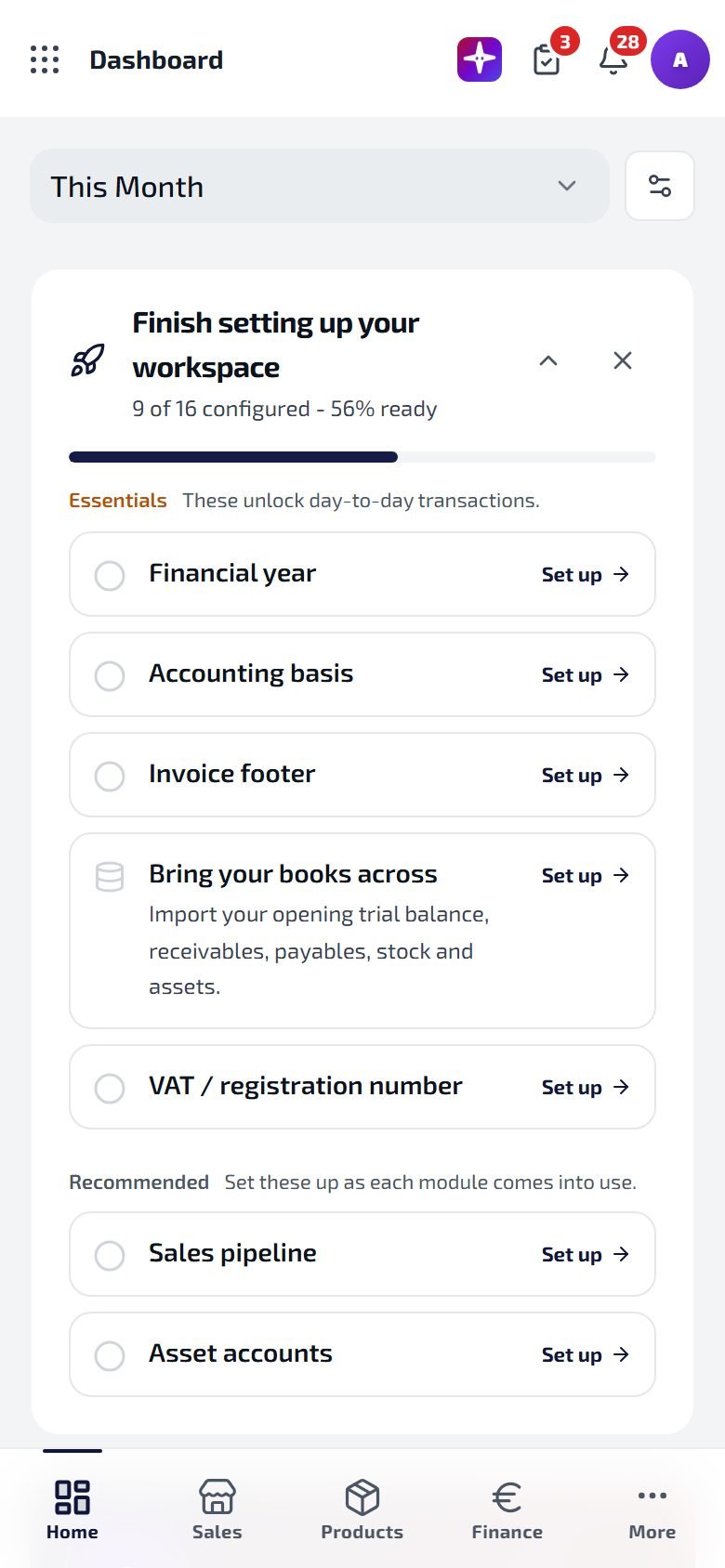
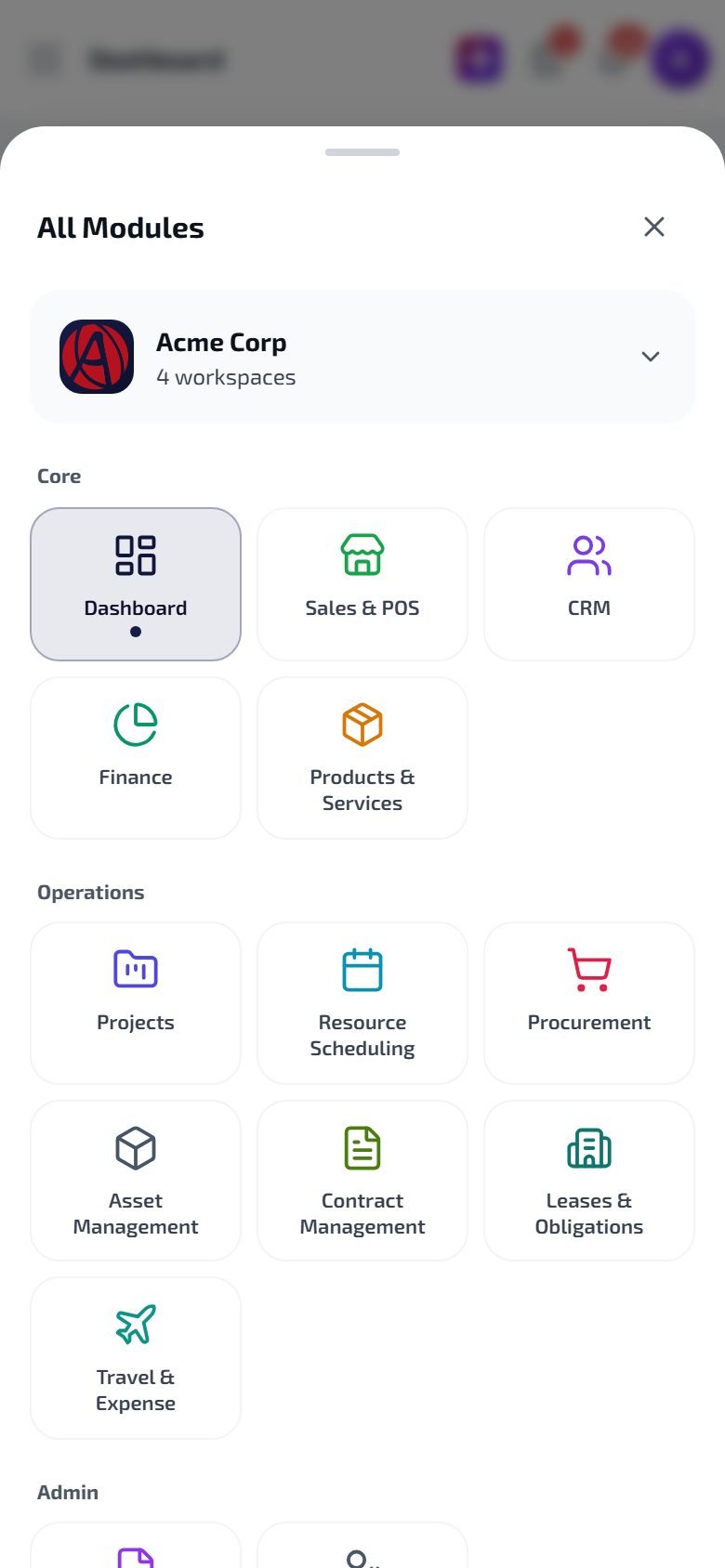 The bar at the bottom has **Home**, three of your modules, and **More**. The three follow what you can open, in this order: Sales, HR, Products, Finance, CRM, Scheduling, Projects. **More** opens every module, grouped into **Core**, **Operations** and **Admin**.
## Made for the phone
* **Count stock** in Products & Services: scan a barcode and enter what is on the shelf.
* **Receive goods** from a purchase order.
* **Bank matches**: the payments the bank sent that Softbooq has paired with an invoice or expense, one card each, to confirm or reject. Below them, lines not matched yet, each with **Ask Jacinta**: she explains what the line probably is and offers the match.
* Expense reports and travel requests as cards you can decide on.
## Signing in
Phones stay signed in until you sign out or your session is ended; a short network problem does not sign you out. The **Desktop inactivity lock** in the security policy does not apply to phones: the phone's own PIN or Face ID protects them. When your account signs in on a device it has not seen before, you get an email naming the device.
## At the counter
For selling at the counter there is a separate app, **Softbooq POS**, which keeps working when the internet drops and catches up afterwards. See [Sales & POS](/erp/sales).
## See also
Setting up your workspace.
Help on bank matches and other problems.
This documentation is built and hosted on [Mintlify](https://mintlify.com), a developer documentation platform.
The bar at the bottom has **Home**, three of your modules, and **More**. The three follow what you can open, in this order: Sales, HR, Products, Finance, CRM, Scheduling, Projects. **More** opens every module, grouped into **Core**, **Operations** and **Admin**.
## Made for the phone
* **Count stock** in Products & Services: scan a barcode and enter what is on the shelf.
* **Receive goods** from a purchase order.
* **Bank matches**: the payments the bank sent that Softbooq has paired with an invoice or expense, one card each, to confirm or reject. Below them, lines not matched yet, each with **Ask Jacinta**: she explains what the line probably is and offers the match.
* Expense reports and travel requests as cards you can decide on.
## Signing in
Phones stay signed in until you sign out or your session is ended; a short network problem does not sign you out. The **Desktop inactivity lock** in the security policy does not apply to phones: the phone's own PIN or Face ID protects them. When your account signs in on a device it has not seen before, you get an email naming the device.
## At the counter
For selling at the counter there is a separate app, **Softbooq POS**, which keeps working when the internet drops and catches up afterwards. See [Sales & POS](/erp/sales).
## See also
Setting up your workspace.
Help on bank matches and other problems.
This documentation is built and hosted on [Mintlify](https://mintlify.com), a developer documentation platform.